BLACK IRON SPINE STUDIOS · VERSION 1.1 · UNREAL ENGINE 5.8 · WINDOWS
RPG Action Bar & Inventory
Buyer Guide
Start with the healing lesson, configure your own items, and connect inventory stock to your action bar. Every illustrated example includes the actual editable graph, plain-English connections and a practical check.
Start here: choose one setup
Use one inventory and one action bar for each player. Choose the route that fits what you are doing.
- Install the combined ActionBarInventoryKit plugin in your project Plugins folder. Enable it and its required ACL plugin, then restart the editor when prompted. Do not also install the two standalone products: this package already contains their modules.
- To see the ordinary interface, use the Inventory Kit and Action Bar project settings for automatic local-player startup. Open the inventory with I or B. An empty inventory is normal; preview items are an explicit demonstration option.
- To learn the combined Blueprint hookup, use the placed-actor lesson on the next page. Turn off automatic startup for both systems first, so you do not create a second inventory behind the scenes.
- In the Content Browser, enable Show Plugin Content. Search the exact Blueprint names printed in this guide. Make your own child Blueprint or working copy for game-specific changes.
Expected result: The interface route uses the player/controller. The teaching route uses one placed actor. Keep those routes separate while learning.
Set up the healing lesson
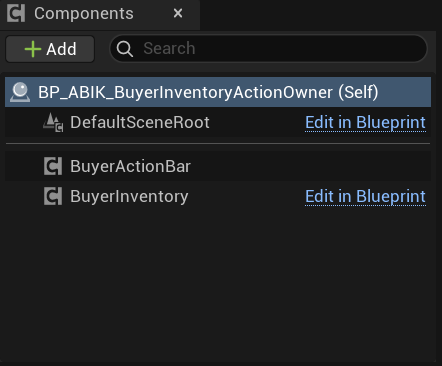
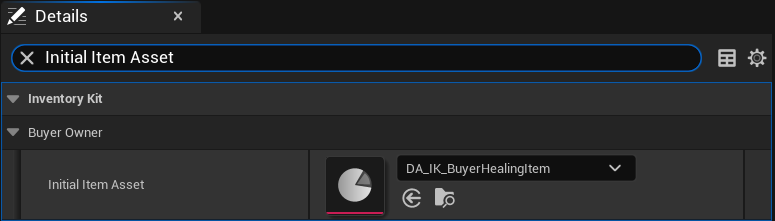
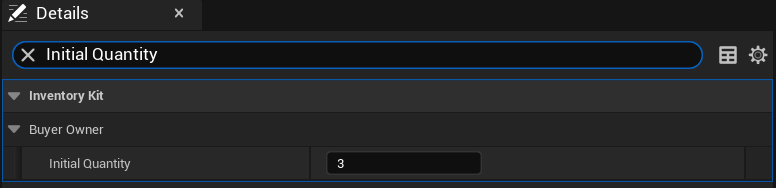
Open BP_ABIK_BuyerInventoryActionOwner. These four panels are the complete owner setup for this lesson.
- Place one instance in your test level. Keep its BuyerInventory and BuyerActionBar components together.
- Click Class Defaults. In Details, search Initial Item Asset and choose DA_IK_BuyerHealingItem. Search Initial Quantity and set 3.
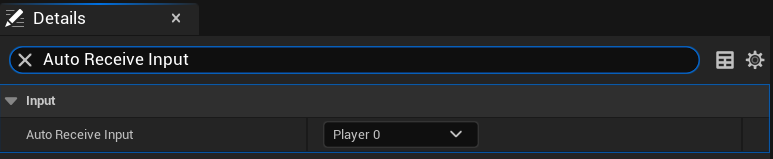
- Search Auto Receive Input and choose Player 0. Compile and save. Close other input menus before testing J.
- For a fresh lesson, use a separate demo save slot so old stock does not hide the starting values. Do not overwrite your player save.
Expected result: The lesson starts with three healing items. The retained healing example starts at 50 health, with a maximum of 100.
/ActionBarInventoryKit/ActionBarInventoryKit/Examples/BP_ABIK_BuyerInventoryActionOwner
Your first successful use
Run your lesson level and press J once for each test. This is a check you can perform in your own project.
- First press: the healing example goes from 50 to 75 health; inventory stock goes from 3 to 2.
- Second press: health reaches 100; stock goes from 2 to 1.
- Third press: full health prevents another use. The last item stays in inventory.
- H is the inherited direct-inventory lesson. J is the combined action-bar lesson. In your game, give each button one route to the effect.
- If nothing happens, check Player 0 input, both component references, the Initial Item Asset, and that automatic startup is off for the placed-actor lesson.
Expected result: A shortcut does not create another item. Using the shortcut spends stock from the same inventory.
Connect and disconnect the owner
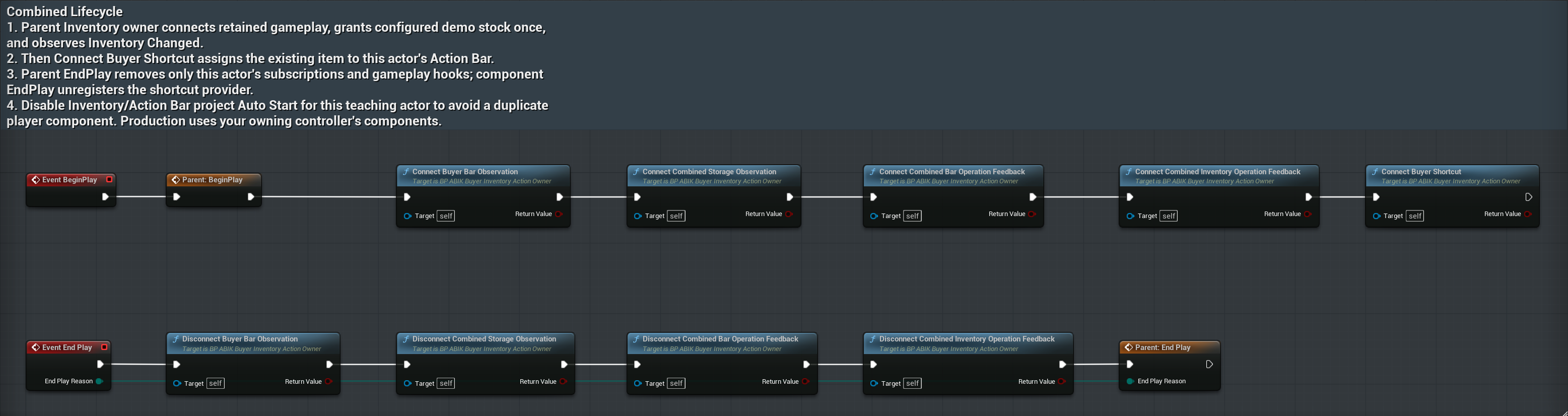
BeginPlay means the actor has started. EndPlay means it is leaving. The parent call runs the inherited inventory setup.
- Let Parent BeginPlay connect the gameplay example and grant the configured starting stock once.
- Connect the bar, bag and operation feedback. Then call Connect Buyer Shortcut.
- When the actor ends, disconnect its named callbacks and run Parent EndPlay. A callback is simply a function that listens for a change.
- Keep the gameplay object alive for as long as this inventory needs it. Do not reconnect or grant starting stock every frame.
Expected result: One owner connects once and removes its own listeners when it leaves.
/ActionBarInventoryKit/ActionBarInventoryKit/Examples/BP_ABIK_BuyerInventoryActionOwner / EventGraph
Assign an existing item to the bar
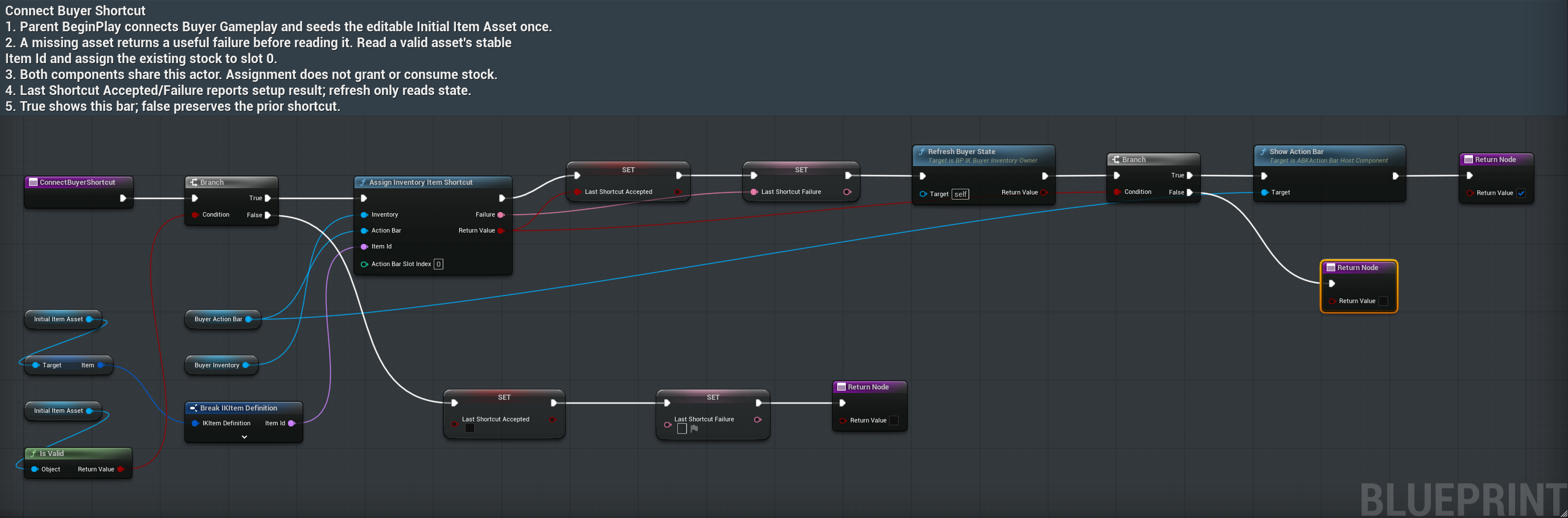
Connect Buyer Shortcut takes the stable Item Id from Initial Item Asset and assigns it to slot 0.
- Read the item definition only after checking that the asset is valid.
- Pass BuyerInventory, BuyerActionBar and Item Id to Assign Inventory Item Shortcut. Both components belong to this actor.
- Read Last Shortcut Accepted and Last Shortcut Failure. On success, refresh the displayed state and show the bar.
- On failure, show the reason and keep the previous shortcut. Assignment does not grant stock, consume stock or run the item effect.
Expected result: The bar points to an item already owned by the inventory.
/ActionBarInventoryKit/ActionBarInventoryKit/Examples/BP_ABIK_BuyerInventoryActionOwner / ConnectBuyerShortcut
Connect one button
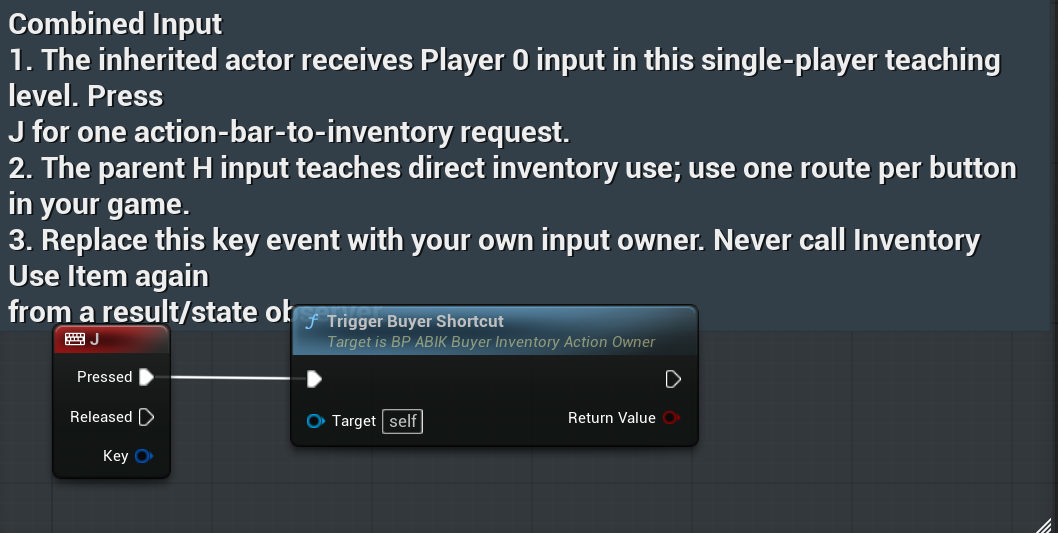
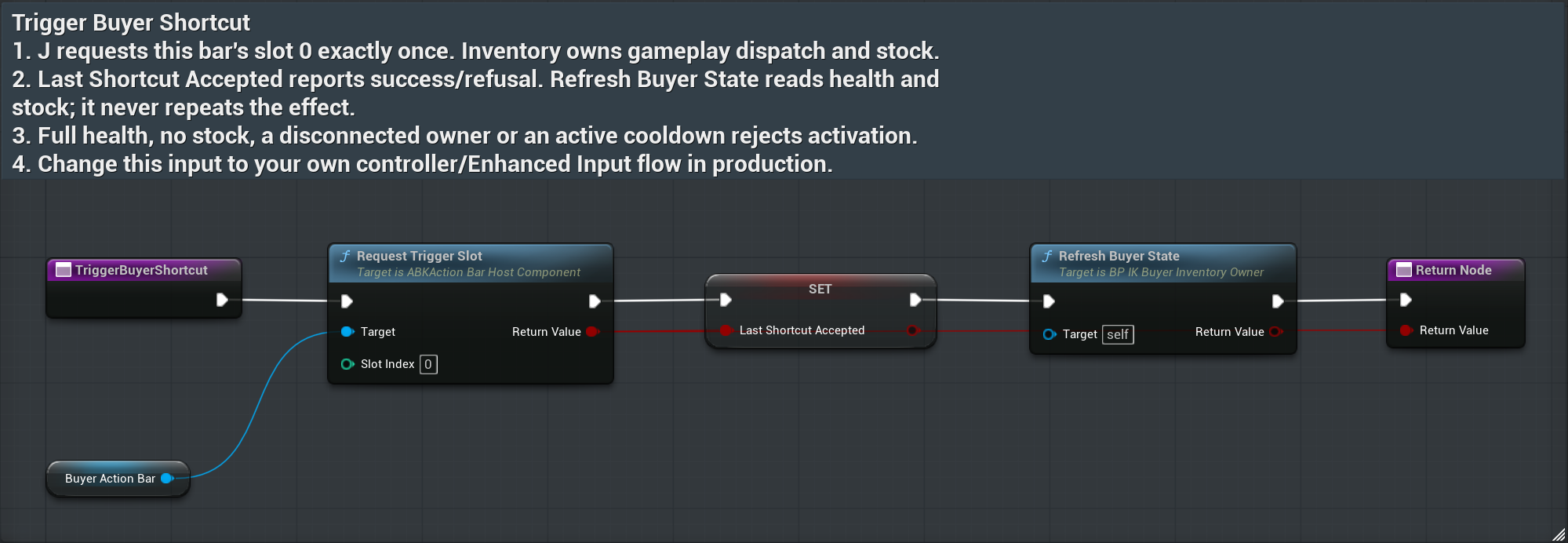
The example J key calls Trigger Buyer Shortcut once.
- Use Pressed for a single request. Replace this key event with your own controller or Enhanced Input action when integrating.
- Do not also call Inventory Use Item from the same button or from a result/state observer.
- If you bind a bar shortcut key for the same action, remove the duplicate actor key event.
Expected result: One button press produces one request. The full instruction above also supplies the last comment line obscured in the original capture.
/ActionBarInventoryKit/ActionBarInventoryKit/Examples/BP_ABIK_BuyerInventoryActionOwner / CombinedInput
Request the item effect once
Trigger Buyer Shortcut asks BuyerActionBar to trigger slot 0. Inventory then checks whether its item can be used.
- Call Request Trigger Slot on the retained bar. Store its actual accepted/refused result.
- Refresh Buyer State reads health and stock for display. It does not repeat the effect.
- Full health, no stock, an active cooldown or a disconnected owner can refuse the request. Treat a refusal as useful feedback.
Expected result: The accepted path applies the gameplay effect once; inventory owns any consumption.
/ActionBarInventoryKit/ActionBarInventoryKit/Examples/BP_ABIK_BuyerInventoryActionOwner / TriggerBuyerShortcut
Understand the two potion examples
The main interface health potion and the small teaching item have different purposes.
- The main UI health-potion entries use the same HealthPotion inventory item and original Inventory Kit health-potion icon. Their shortcut identity is IK.HealthPotion. Both entries draw from the same stock and use the same inventory activation route.
- A shortcut is not a second stack. Assigning or migrating a potion shortcut must not grant extra potions.
- DA_IK_BuyerHealingItem is the separate editable lesson asset. It supplies the three-item healing exercise in this guide. Do not rename it to the main potion just to match the icon.
- For your game, connect the health effect to your own health system. The UI cannot infer which character should be healed or how your health is saved.
Expected result: Use a stable Item Id for each real item, and have every shortcut to that item use that same identity.
Everyday inventory and bar use
The inventory holds stock. The bar lets the player reach actions quickly.
- Open inventory with I or B in the ordinary setup. Drag stacks to move, merge or swap them. Shift-drag splits a stack; the context menu also offers a quantity-based split.
- Search and category filters change what you see, not the underlying slot identity. Sorting can include hidden items. Re-read the current slot before a delayed action.
- Assign inventory items through Assign Inventory Item Shortcut in your game hookup. Use the bar slot or its configured binding to request the action.
- Keyboard/controller navigation uses the UI focus: arrows or D-pad move, Enter/Space or the bottom face button opens actions, and Escape or the right face button cancels. Check conflicts with your own input mapping.
- A cooldown means the action is temporarily unavailable. Start or display a cooldown after the game accepts the effect, not simply because the player clicked.
Expected result: Your own input setup can change these controls. Keep the displayed binding and the actual input route in agreement.
Appearance and window behavior
Use the built-in settings before changing Blueprint or C++ code.
- Inventory appearance settings adjust scale and columns. Save Settings keeps the chosen appearance. Reset Appearance is for presentation; it is not an inventory wipe.
- Shift-drag the inventory header to move its window. Where a 3D item preview is supplied, drag to rotate and use the wheel to zoom.
- Use Action Bar settings for its layout, bindings and presentation. A layout change should preserve the gameplay owner and inventory stock.
- The combined launcher has project settings for button size, corner inset and background opacity. A registered BIS dock keeps its own presentation.
- If your game manages cursor and input focus itself, configure inventory input-mode management before opening it. Your controller remains responsible for restoring your game-specific focus behavior.
Expected result: Appearance settings change how the interface looks; they should not replay gameplay effects.
Make your own item
Duplicate an appropriate item definition, then give it a stable identity and the presentation your players need.
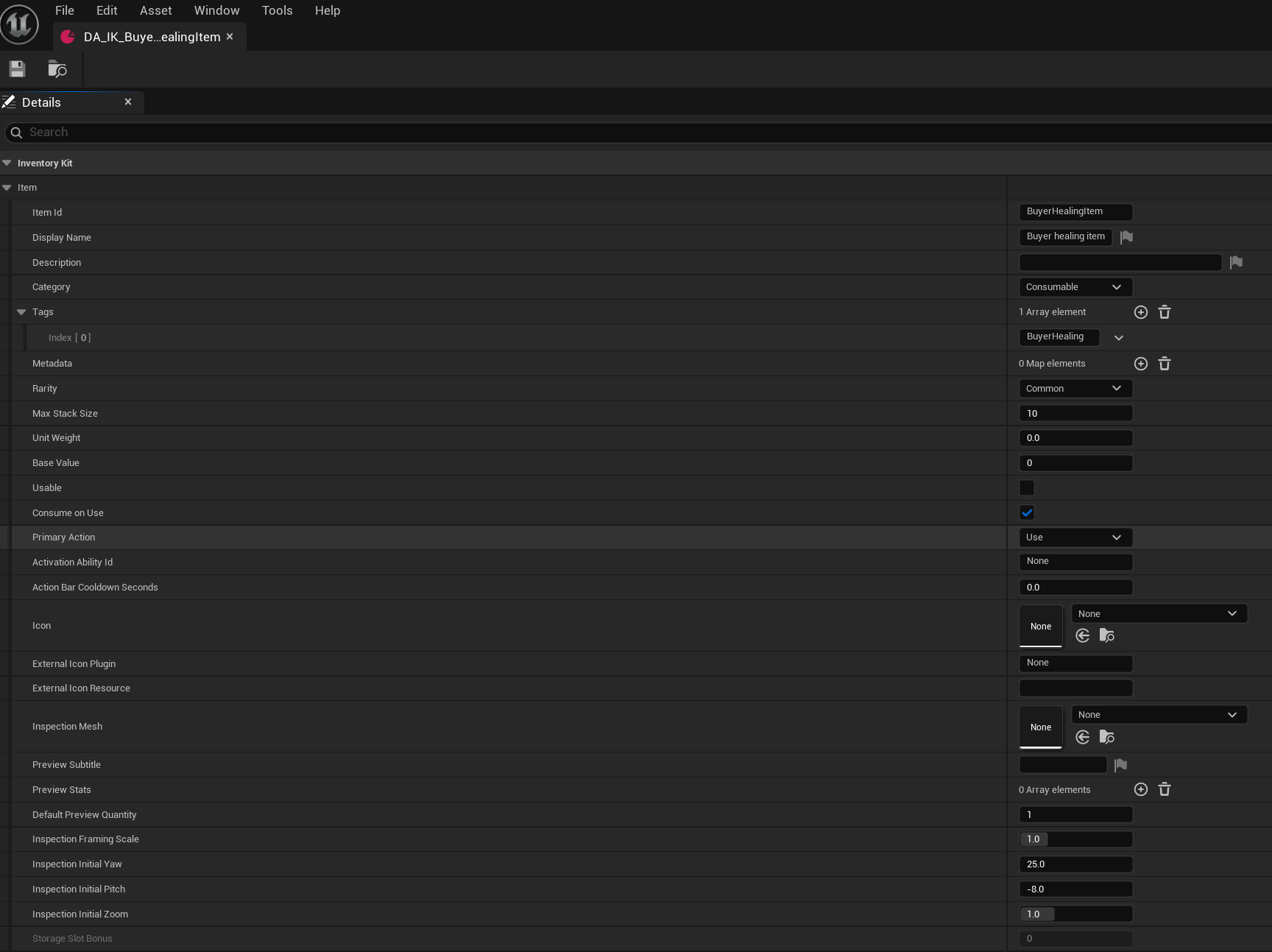
- Set Item Id, display name, category, icon and stack limit. Keep the Item Id stable after release so saves and shortcuts can still find the item.
- Choose the intended Primary Action and whether accepted use consumes stock. For the healing lesson, the Primary Action is Use and Consume On Use is enabled.
- The lesson healing tag is an ordinary Name value used by its example. Connect the appropriate activation owner before testing use.
- Grant stock through your game reward, pickup or load path. Check how many items were actually added when capacity is limited; handle the remainder.
- Assign the owned Item Id to a bar slot. Changing its icon does not give it a gameplay effect.
Expected result: The standalone Inventory screenshot below describes the shared healing definition. The combined owner adds the action-bar connection.
/InventoryKit/InventoryKit/Examples/DA_IK_BuyerHealingItem
Connect your own healing effect
An activation owner is the object that decides whether an item can be used and performs its game effect.
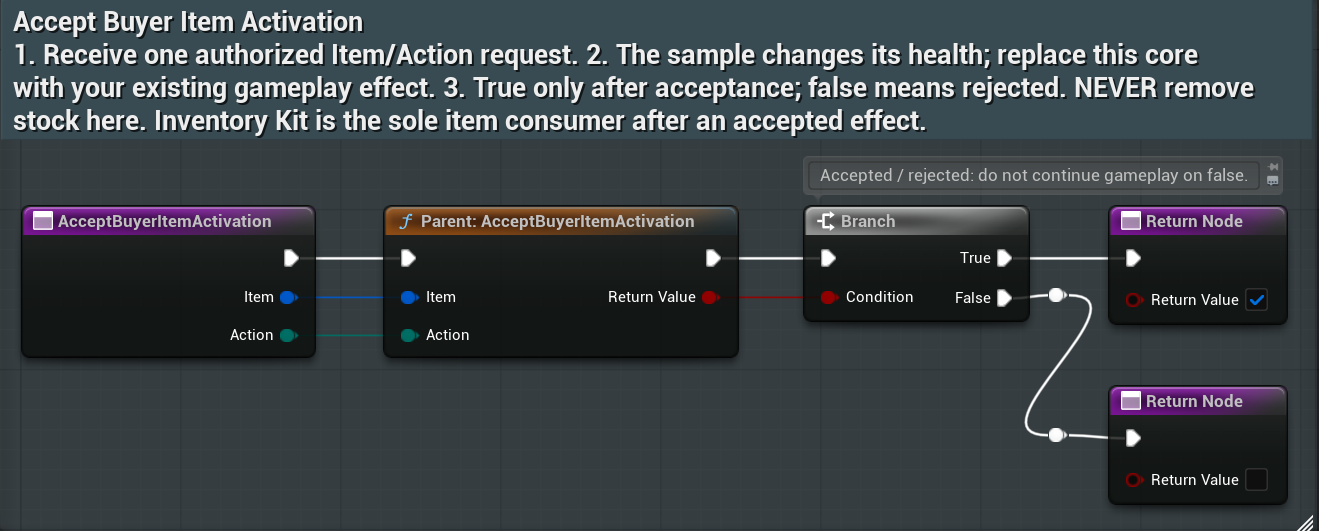
- Retain your subclass of BP_IK_BuyerActivation and connect it to the intended inventory.
- Use Get Buyer Use Unavailable Reason for a read-only check, such as whether health is already full.
- At Accept Buyer Item Activation, check readiness again, apply your intended effect once, and return the real accepted result.
- The shown parent call already applies the example healing. Replace the effect boundary for your health system; do not call that parent and then heal a second time.
- Let inventory handle accepted consumption. Result listeners may update text or sound, but must not heal or remove items again.
Expected result: The game owns health. Inventory owns stock. The return value tells inventory whether the game accepted the use.
/InventoryKit/InventoryKit/Examples/BP_IK_BuyerActivation / AcceptBuyerItemActivation
Add a custom right-click action
A context action is an extra item-menu command, such as Study Item.
- Retain your subclass of BP_IK_BuyerContext and connect it to the same inventory.
- Give each menu action a stable Action Id and a readable label. Check availability without changing gameplay state.
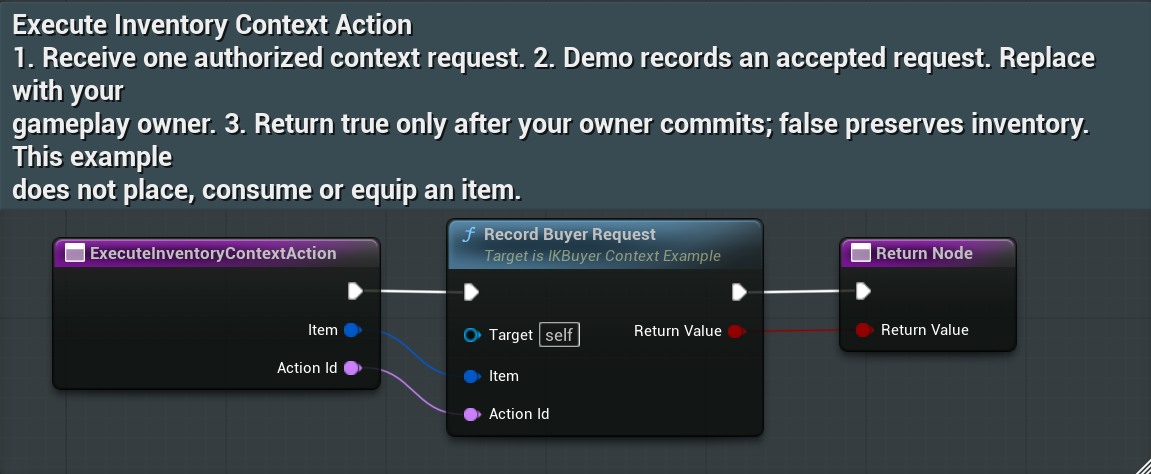
- Execute Inventory Context Action is the place to run the accepted custom action. Return its actual result.
- The shared example records the request. Replace or extend that behavior deliberately for your game. A menu command does not automatically consume stock.
- Disconnect your own provider and listeners when their owner leaves.
Expected result: Menu building and availability checks read state; execution is the only place that commits the action.
/InventoryKit/InventoryKit/Examples/BP_IK_BuyerContext / ExecuteInventoryContextAction
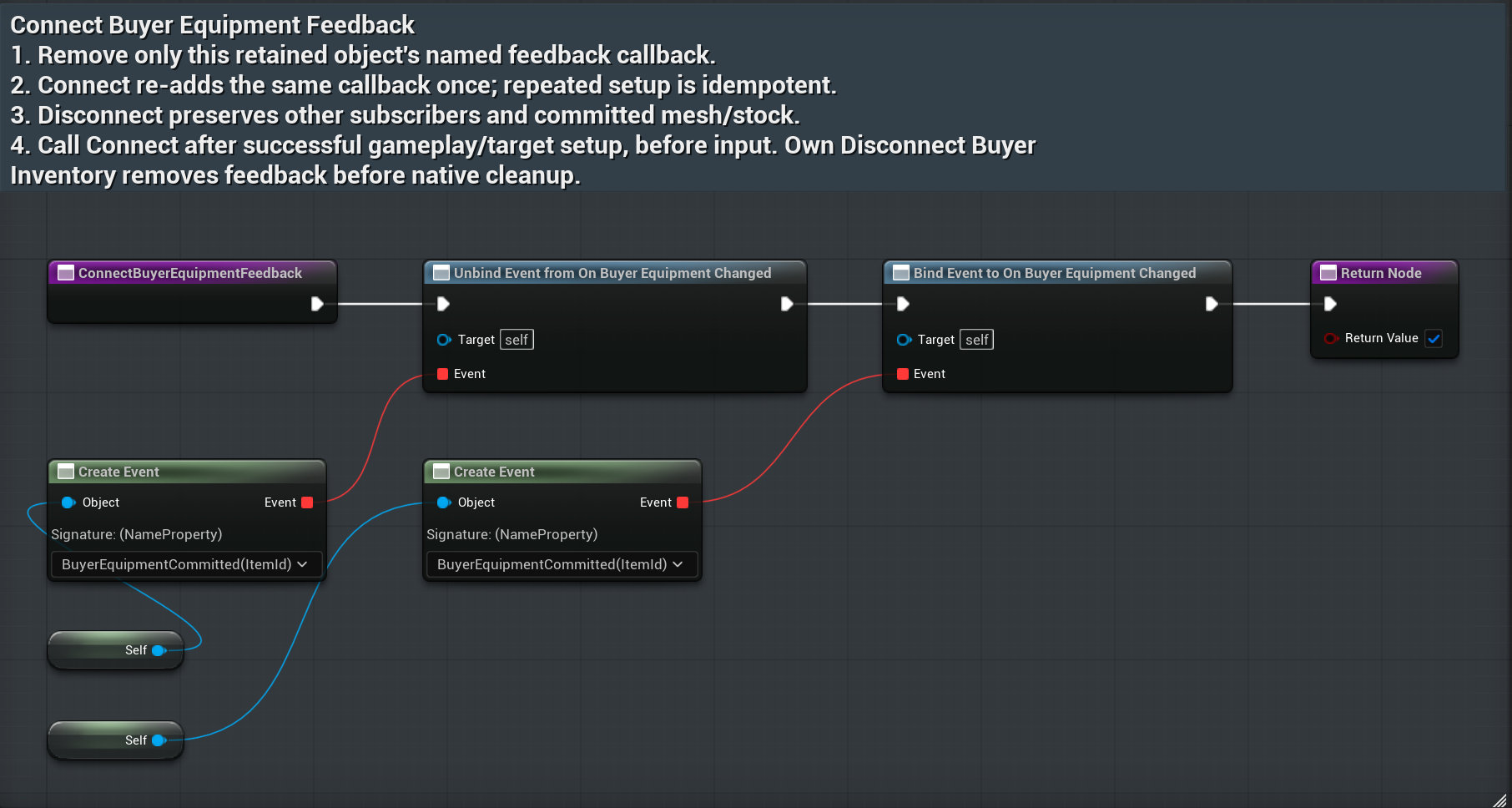
Bags add storage space
A storage bag is an owned item that adds capacity while equipped in a bag socket.
- Use a bag definition with the intended storage bonus. The Buyer Storage Bag lesson adds eight slots.
- Grant the bag through your game, then equip that owned bag into an available socket. Choosing an asset in defaults is not itself a stock grant.
- Before removing a bag, make room for all remaining items within the smaller capacity. Refusal protects the items that would no longer fit.
- Keep the destination for a removed bag inside the reduced capacity. Show the returned failure instead of silently discarding stock.
Expected result: Equip and unequip change capacity through the inventory owner.
/InventoryKit/InventoryKit/Examples/DA_IK_BuyerStorageBag
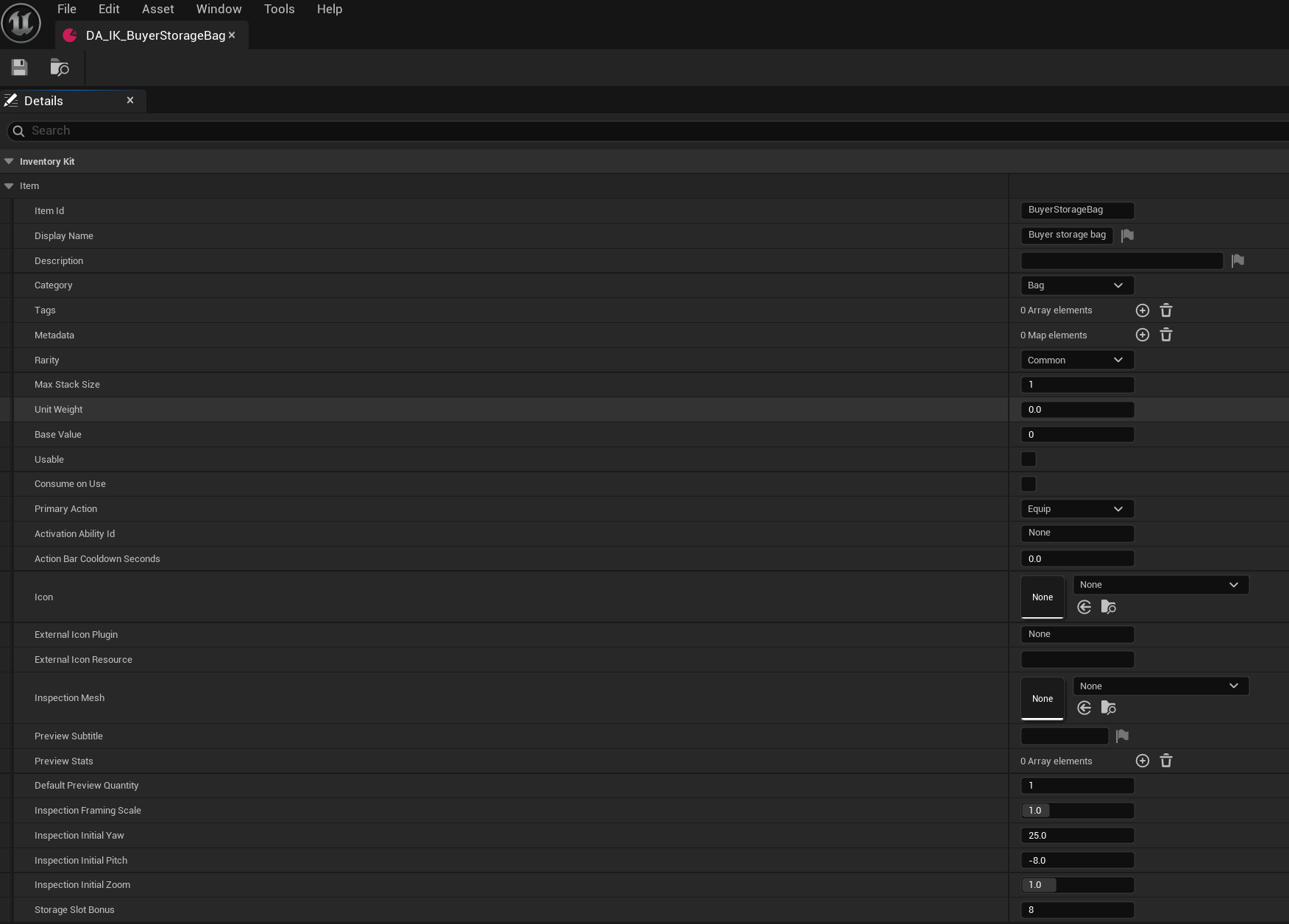
Listen for bag and capacity changes
Connect Combined Storage Observation keeps this actor informed when bags or capacity change.
- Unbind this actor's named callback, then bind the same callback once. This prevents duplicate notifications when setup is repeated.
- Read the committed bag and capacity state to update your HUD, counters or help text.
- Do not equip bags, grant items or alter stock from the notification itself.
- Disconnect only this actor's callbacks during cleanup; leave other listeners intact.
Expected result: Observing a change does not perform the change again.
/ActionBarInventoryKit/ActionBarInventoryKit/Examples/BP_ABIK_BuyerInventoryActionOwner / ConnectCombinedStorageObservation
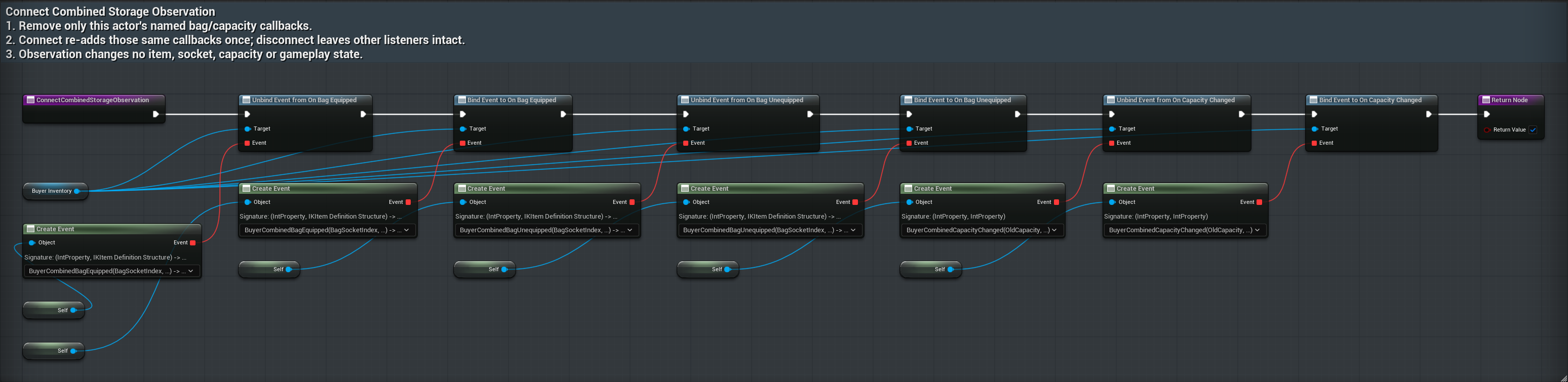
Optional: display equipped items
The equipment example changes an existing Static Mesh Component. It is a starting point for visible equipment, not a complete gear-stat system.
- Create and retain BP_ABIK_BuyerEquipmentGameplay. Connect its inherited inventory owner first.
- In Class Defaults, search Equipment Meshes. Add a map entry from your stable equipment Item Id to the mesh you want displayed.
- Pass an existing Static Mesh Component on that inventory owner or its current player pawn into Configure Buyer Equipment. The target is supplied at runtime.
- Check Return Value and Failure. Refusal keeps the previous target. Use an owned equipment item and configure consumption appropriately.
- For weapon icons, map Item Ids in Equipment Weapon Categories and connect the intended weapon-category source. Your game still owns combat behavior and equipment statistics.
Expected result: An accepted equipment action changes the configured mesh target.
/ActionBarInventoryKit/ActionBarInventoryKit/Examples/BP_ABIK_BuyerEquipmentGameplay / ConfigureBuyerEquipment
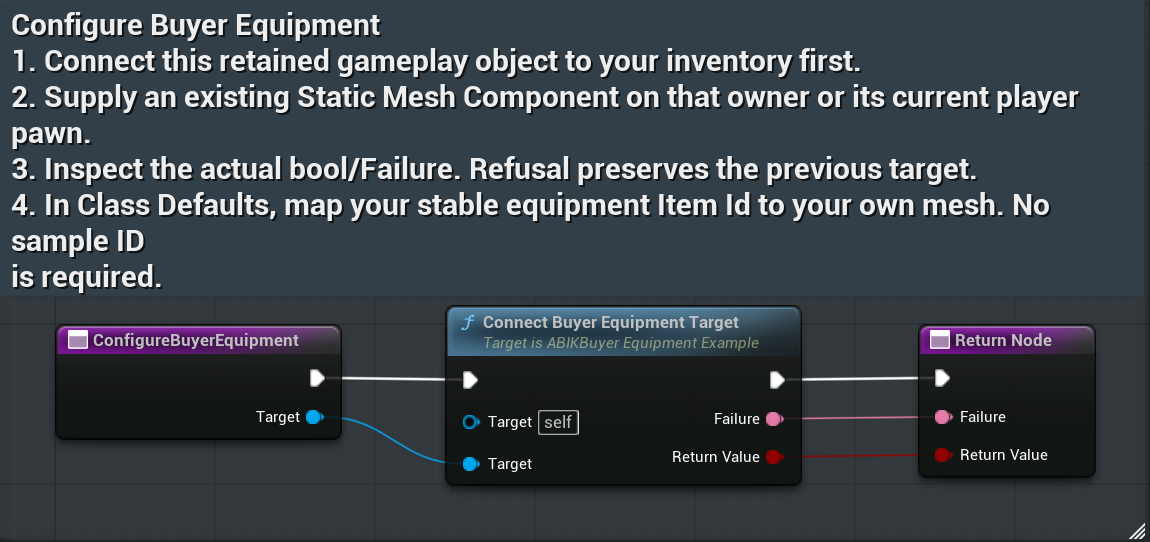
Optional: equipment feedback
Connect Buyer Equipment Feedback listens after the equipment change has committed.
- Call it after inventory and equipment-target setup succeed, before accepting input.
- Use Buyer Equipment Committed to update UI or play feedback. Do not equip the item a second time from this event.
- The function removes and re-adds only this object's own named callback. Repeated setup should not multiply notifications.
- Disconnect feedback and disconnect the retained inventory owner during cleanup. Disconnecting listeners does not undo an already committed mesh change.
Expected result: Use the dedicated unequip operation when you intend to restore the earlier mesh; cleanup and unequip have different purposes.
/ActionBarInventoryKit/ActionBarInventoryKit/Examples/BP_ABIK_BuyerEquipmentGameplay / ConnectBuyerEquipmentFeedback
Optional: put an ability on the bar
Use the ability example when an owned inventory item should request the existing local melee router.
- Use the player/controller-owned inventory and the existing ability router on its current pawn. Keep the gameplay object alive.
- Create an owned item with a stable Item Id and Primary Action Activate. Configure whether this item should be consumed for your design.
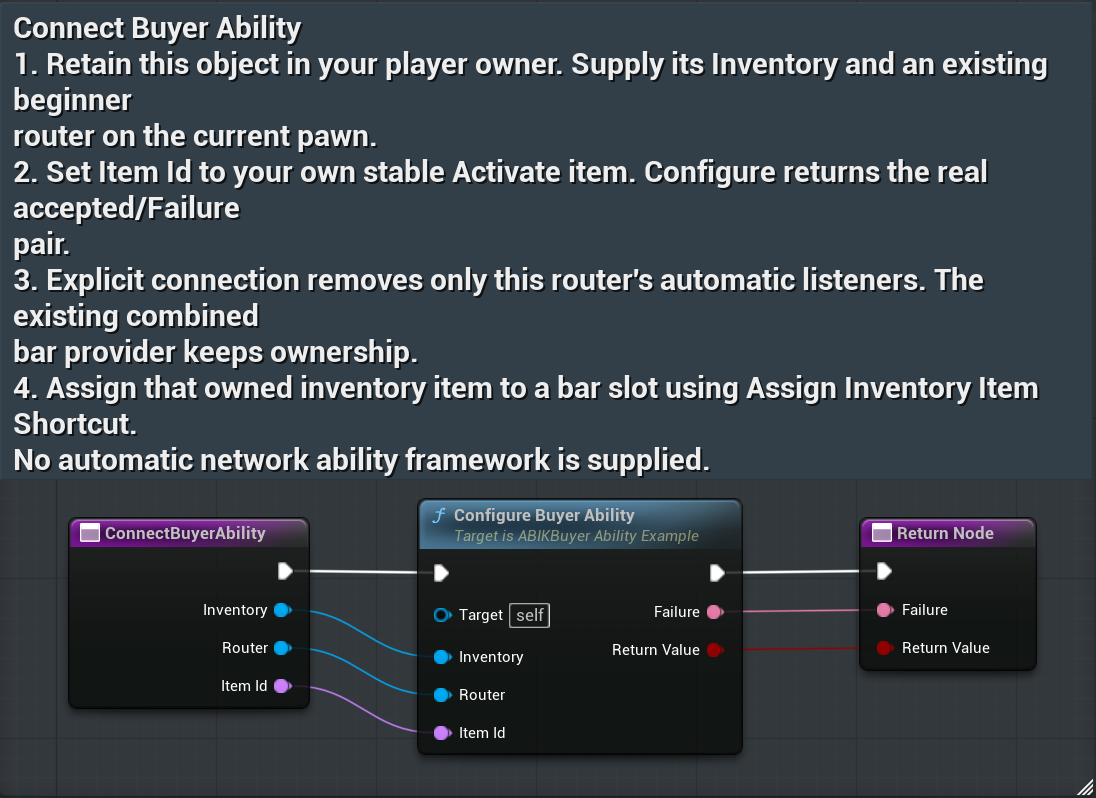
- Call Connect Buyer Ability with Inventory, Router and Item Id. These are runtime inputs, not extra Class Defaults fields.
- Check the returned accepted value and Failure. This connection removes only that router's automatic listeners and keeps the combined bar provider.
- Assign the owned item through Assign Inventory Item Shortcut. Give it one incoming input route.
Expected result: This example connects an existing local ability; it does not supply a multiplayer ability framework.
/ActionBarInventoryKit/ActionBarInventoryKit/Examples/BP_ABIK_BuyerAbilityGameplay / ConnectBuyerAbility
Optional: accept the ability once
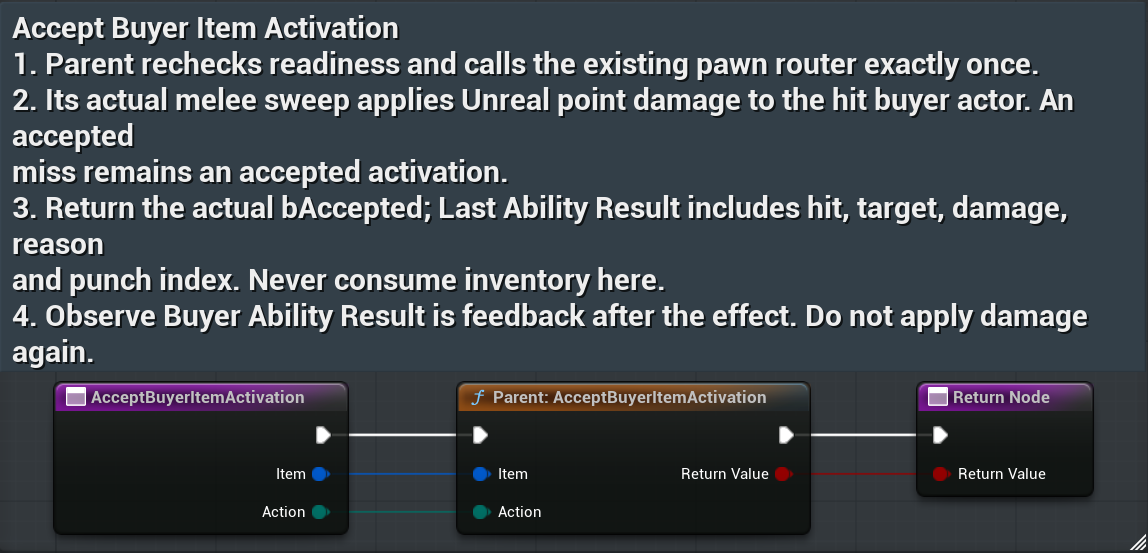
The parent of Accept Buyer Item Activation rechecks readiness and calls the current pawn router once.
- Return the actual accepted value from the parent. Do not report success just because the object reference exists.
- The melee sweep applies point damage to a hit actor. A valid attack that misses can still be an accepted activation.
- Use Last Ability Result to read hit, target, damage, refusal reason and punch index.
- Do not apply damage or consume inventory again in this wrapper.
Expected result: Your game owns the target health and its save data.
/ActionBarInventoryKit/ActionBarInventoryKit/Examples/BP_ABIK_BuyerAbilityGameplay / AcceptBuyerItemActivation
Optional: read the ability result
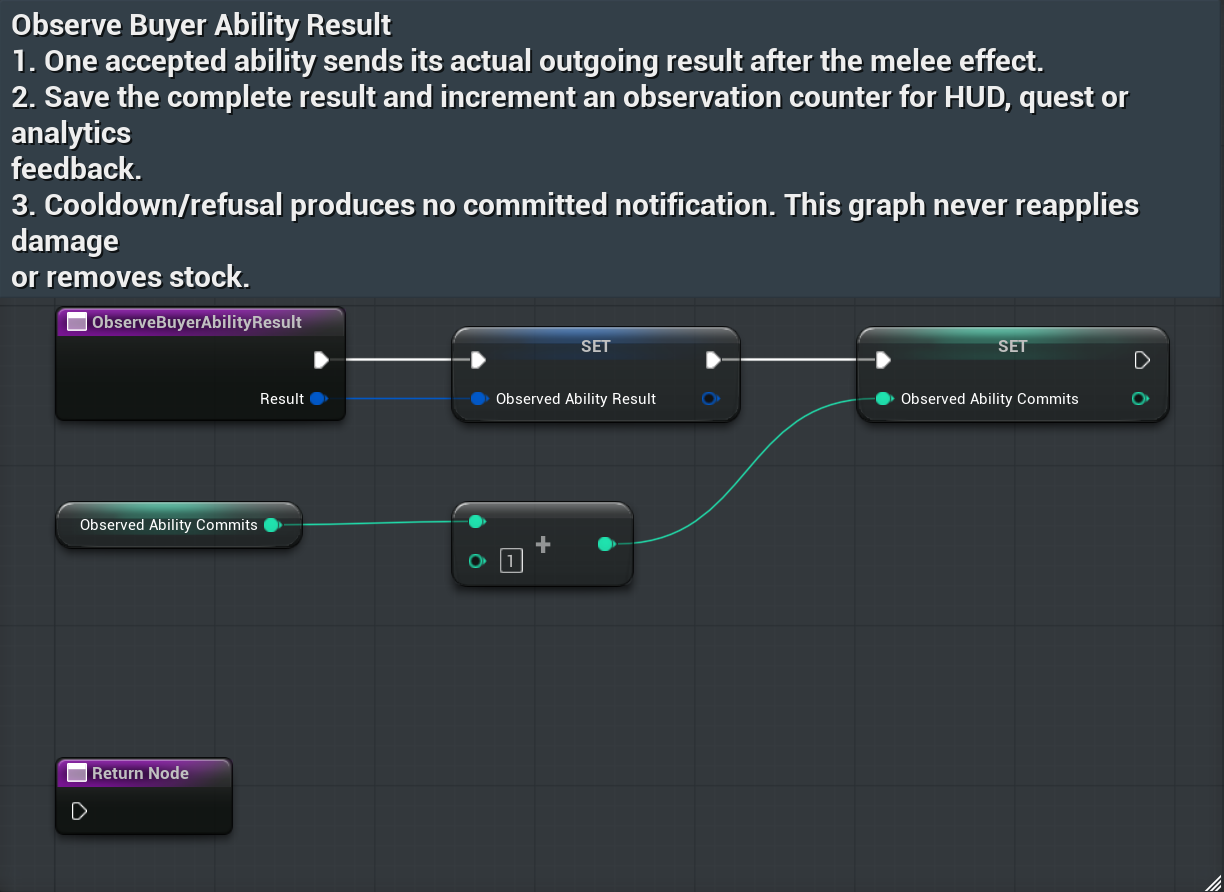
Observe Buyer Ability Result runs after an accepted effect and stores the result for feedback.
- Keep the complete Result for HUD text, quest logic or analytics.
- The observation counter counts committed notifications. A cooldown refusal does not create a committed notification.
- Keep this graph observational: never request another attack, apply damage or remove stock here.
- Disconnect the retained inventory owner when it ends. Reconnect explicitly to the correct current pawn when ownership changes.
Expected result: A result reports what happened. It is not a second command to do it.
/ActionBarInventoryKit/ActionBarInventoryKit/Examples/BP_ABIK_BuyerAbilityGameplay / ObserveBuyerAbilityResult
Punches and your character animation
The router and the character animation must both be connected for the intended motion.
- Use the configured BP_ABK_SimpleAbilityRouter example for its saved punch clips. Configure damage, reach, hit radius and cooldown for your game.
- The current motion route supports full-body punches while standing and a blend that preserves lower-body locomotion while moving.
- Your character needs a compatible skeleton and Animation Blueprint using the punch animation integration. A custom mesh does not become compatible simply by assigning an action-bar slot.
- The combined demonstration host has its own mannequin Animation Blueprint hookup. Treat that as host setup; do not assume your unrelated pawn automatically receives the same Anim Class.
- Check stationary punches, walking punches and return to locomotion on your character. Your game also owns authority, replication and target health.
Expected result: Start from your character's existing locomotion and integrate the punch route deliberately. Keep only one automatic or inventory-owned attack route active.
Save the action bar
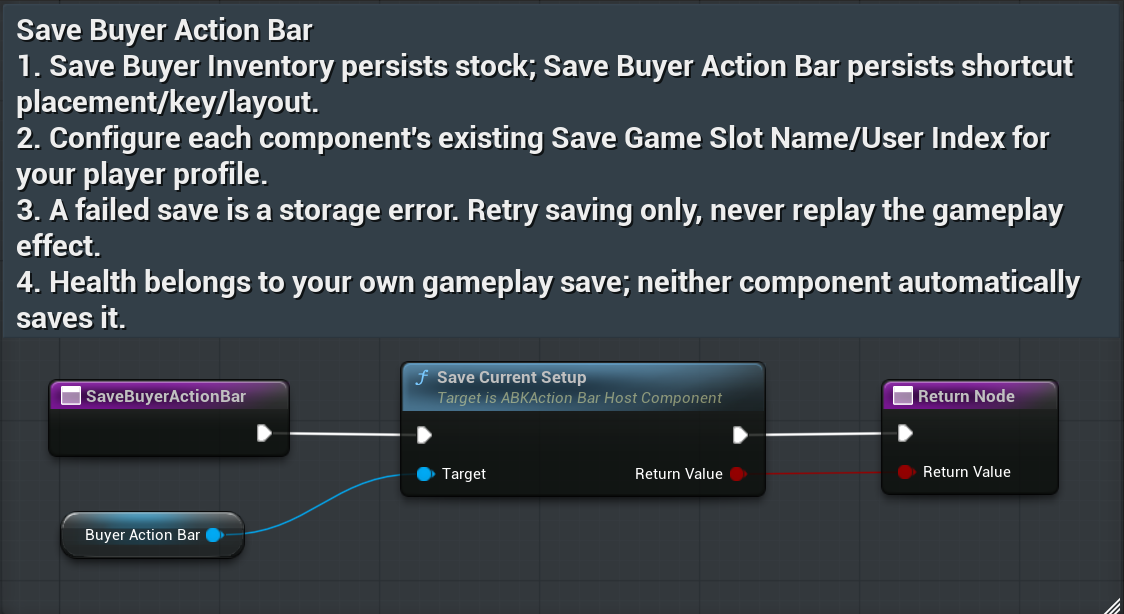
Inventory and action-bar saves store different things. Give each its own Save Game Slot Name and the intended user index.
- Save Buyer Action Bar calls Save Current Setup on BuyerActionBar. It stores bar setup such as shortcut placement, keys and layout.
- Read the actual save result. If storage fails, show the error and retry saving only.
- Do not retry the original healing, attack or equipment action because its later save failed.
- Save character health, quests and other gameplay state in your own game save.
Expected result: Saving UI setup does not automatically save your character.
/ActionBarInventoryKit/ActionBarInventoryKit/Examples/BP_ABIK_BuyerInventoryActionOwner / SaveBuyerActionBar
Save inventory stock
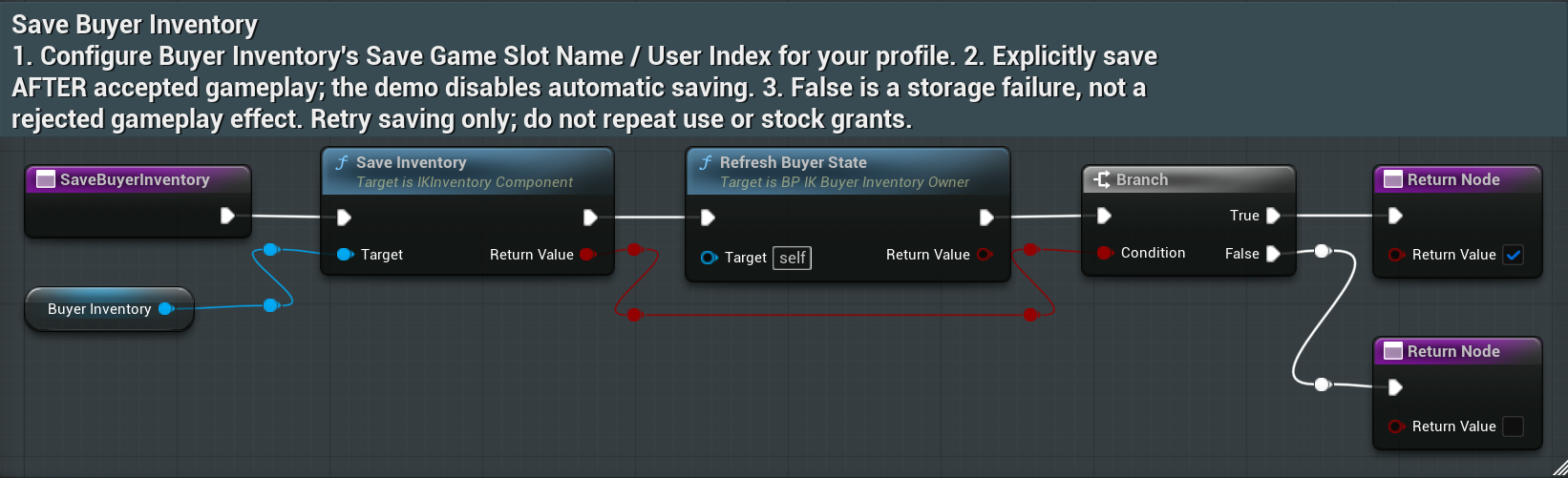
The inherited Save Buyer Inventory function uses the inventory persistence route.
- Configure the inventory save slot separately from the action bar slot.
- Call Save Buyer Inventory on the retained owner and check the returned result.
- Keep stock, capacity and equipped-bag state on the inventory route. Coordinate your own gameplay save at a deliberate checkpoint.
- Use separate demo/profile names during testing so a lesson cannot overwrite an existing player save.
Expected result: The shared Inventory screenshot applies to the parent of the combined owner.
/InventoryKit/InventoryKit/Examples/BP_IK_BuyerInventoryOwner / SaveBuyerInventory
Load without replaying gameplay
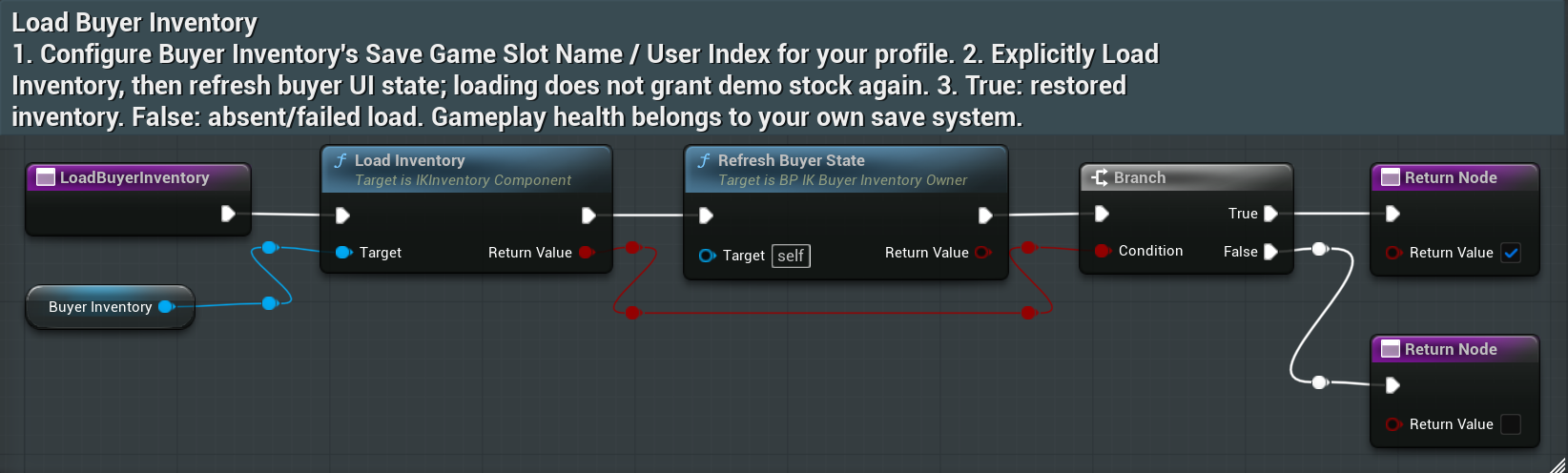
Use the same slot name and user index used when saving.
- Call Load Buyer Inventory and check its actual result before assuming saved stock is available.
- Restore bar setup through its separate persistence route. Stable Item Ids let shortcuts identify restored inventory.
- Load health and other gameplay state through your own game save.
- Refresh displayed state after loading. Do not heal, damage, grant starting stock again or consume an item because a load notification arrived.
Expected result: Loading restores state. It does not replay the actions that originally created that state.
/InventoryKit/InventoryKit/Examples/BP_IK_BuyerInventoryOwner / LoadBuyerInventory
Advanced: who owns the bar?
Most combined integrations only need inventory shortcuts. A full action-bar provider is for a game that wants to supply the whole bar.
- Keep the combined provider when using Assign Inventory Item Shortcut. Do not install a full replacement provider just to add one inventory item.
- For a deliberate custom provider, retain it for the bar's lifetime. Get Action Bar Slots returns the presentation snapshot; Can Trigger Action Slot checks readiness without side effects.
- Trigger Action Slot runs the accepted action once. Recheck readiness there and return its actual result.
- Disconnect only your own provider and callbacks. Do not take over a different active owner silently.
- For native integration, add the modules you use to Build.cs: ActionBarInventoryKit, ActionBarKit and InventoryKit. Read the public headers for the current signatures. The normal editable examples do not require changing plugin C++.
Expected result: A provider is the object that answers the bar's questions and handles requests. Decide which object owns that responsibility before connecting it.
If something does not work
Start with the first matching symptom.
- Two inventories or inconsistent counts: automatic player startup and the placed teaching actor may both be active. Choose one owner and reconnect the shortcut to that inventory.
- J does nothing: check Auto Receive Input = Player 0, input focus, Initial Item Asset, and the actual shortcut failure. Close a UI that is consuming the key.
- Item is visible but cannot be used: check stock, cooldown, gameplay connection, correct Primary Action, and the unavailable reason. Full health is an expected refusal in the lesson.
- An effect happens twice: look for both an actor key event and a bar binding, or an effect replayed from a result listener.
- A bag will not come off: move items into the capacity that will remain after removal.
- Old quantities return: check the save slot/profile being loaded. Use a separate fresh demo slot instead of deleting a player save.
- Punch motion is wrong: check your pawn skeleton, Animation Blueprint and punch blend hookup. A functioning damage request does not prove animation integration.
Expected result: Read the real failure message before changing the graph. Fix ownership or input first; do not add another effect call as a workaround.
Before shipping your game
Use these checks on your own final game and content.
- Verify a fresh player and a returning saved player. Test accepted use, refusal, empty stock, cooldown, disconnect and reconnect.
- Check bags at the capacity limit, save/load, and the same potion used from both shortcut positions. Confirm stock cannot duplicate or disappear.
- Include your item definitions, icons, meshes, animation assets and dependencies in the packaged game. Verify soft-referenced content is cooked through your project's asset/cook setup.
- Keep the plugin's content layout intact. Its shared /ActionBarKit/ and /InventoryKit/ asset paths are part of the combined installation.
- Test keyboard, mouse and your intended controller mappings in the packaged game. Confirm custom cursor/focus restoration.
- Verify multiplayer authority and replication in your own implementation if your game needs them. The local teaching examples are not a complete multiplayer inventory or ability architecture.
Expected result: Editor success alone is not a packaged-game or release approval.
Quick glossary and support
The terms used in the graphs are simpler than they sound.
- Owner: the actor or controller whose inventory and action bar you are using.
- Item Id: the stable name used to identify an item across stock, shortcuts and saves.
- Provider / gameplay object: the retained object that supplies actions or performs the game effect.
- Accepted: the actual operation succeeded. A request alone is not success.
- Observer / callback: a listener that reads a change after it happens. It should not repeat the effect.
- Support: support.blackironspine@proton.me. Include product version, Unreal version, steps to reproduce, the actual failure text and relevant logs.
- Our initial-response target is 24 hours. This is not a guaranteed resolution time.
Expected result: Black Iron Spine Studios